SVG
Design how-to · AI images to vectors
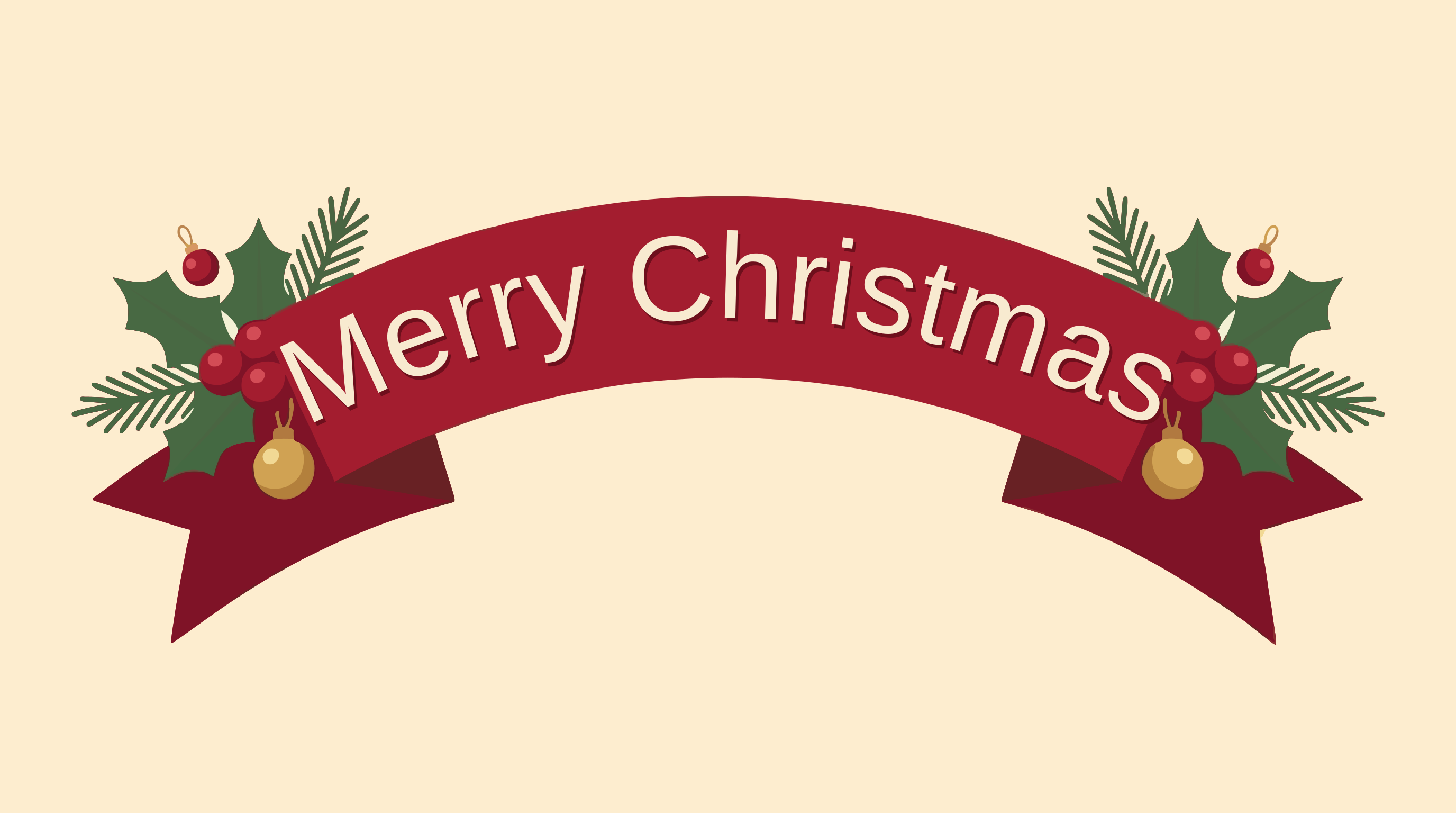
A designer asked me how to take an AI-made holiday banner, with the words curving along the ribbon, and turn it into a real SVG. So I did it from start to finish. Here’s every step in plain words, the files, and a live demo you can play with.
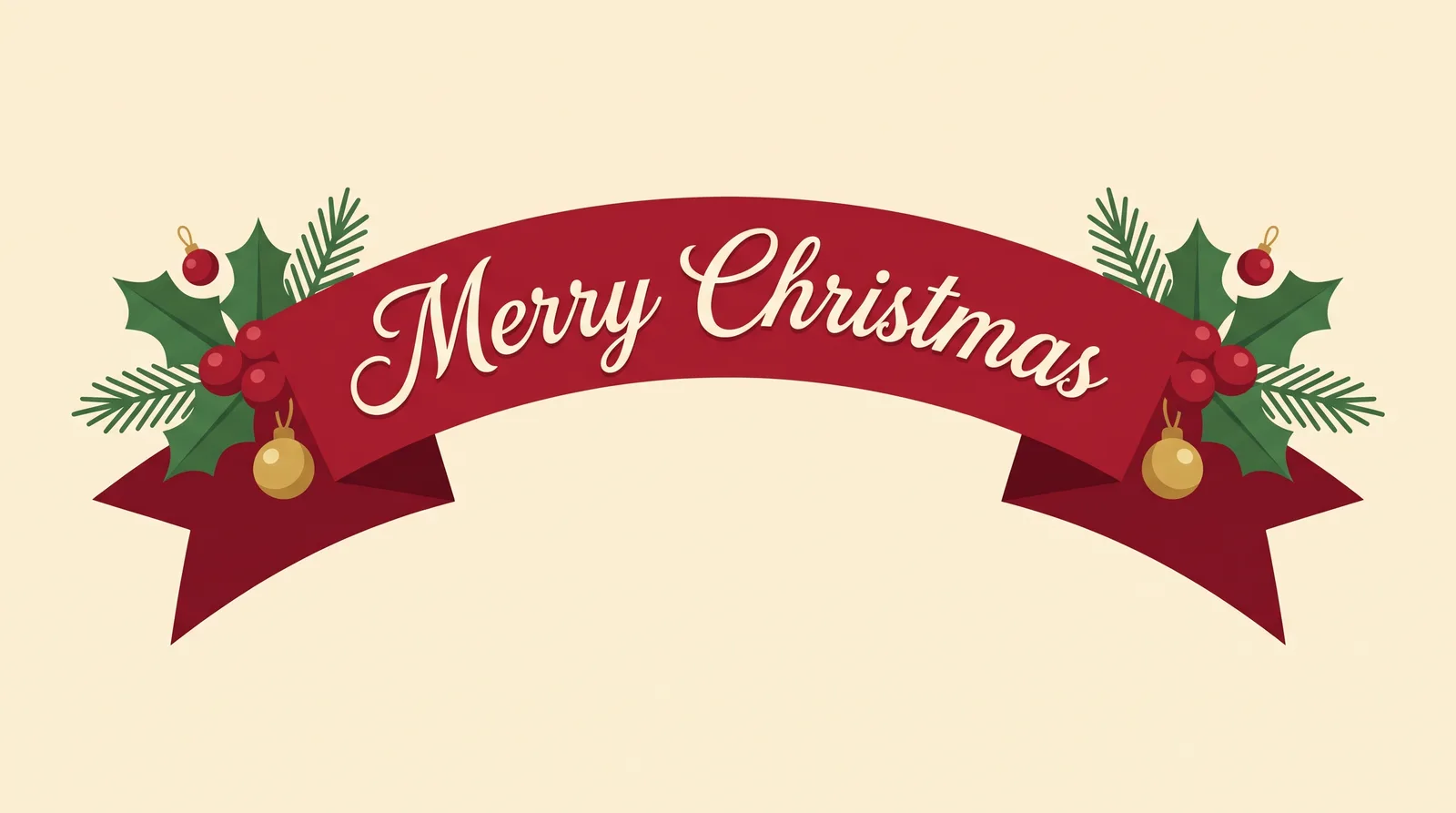
That’s the trick. Every tracer turns letters into blobs you can’t retype, so you don’t trace the words. You rebuild them.
A PNG is a grid of colored dots. Blow it up and it gets blurry, and you can’t grab one piece of it. An SVG describes shapes with math, so it stays sharp at any size and every piece can be recolored, moved or deleted. Software that converts one to the other is called a tracer.
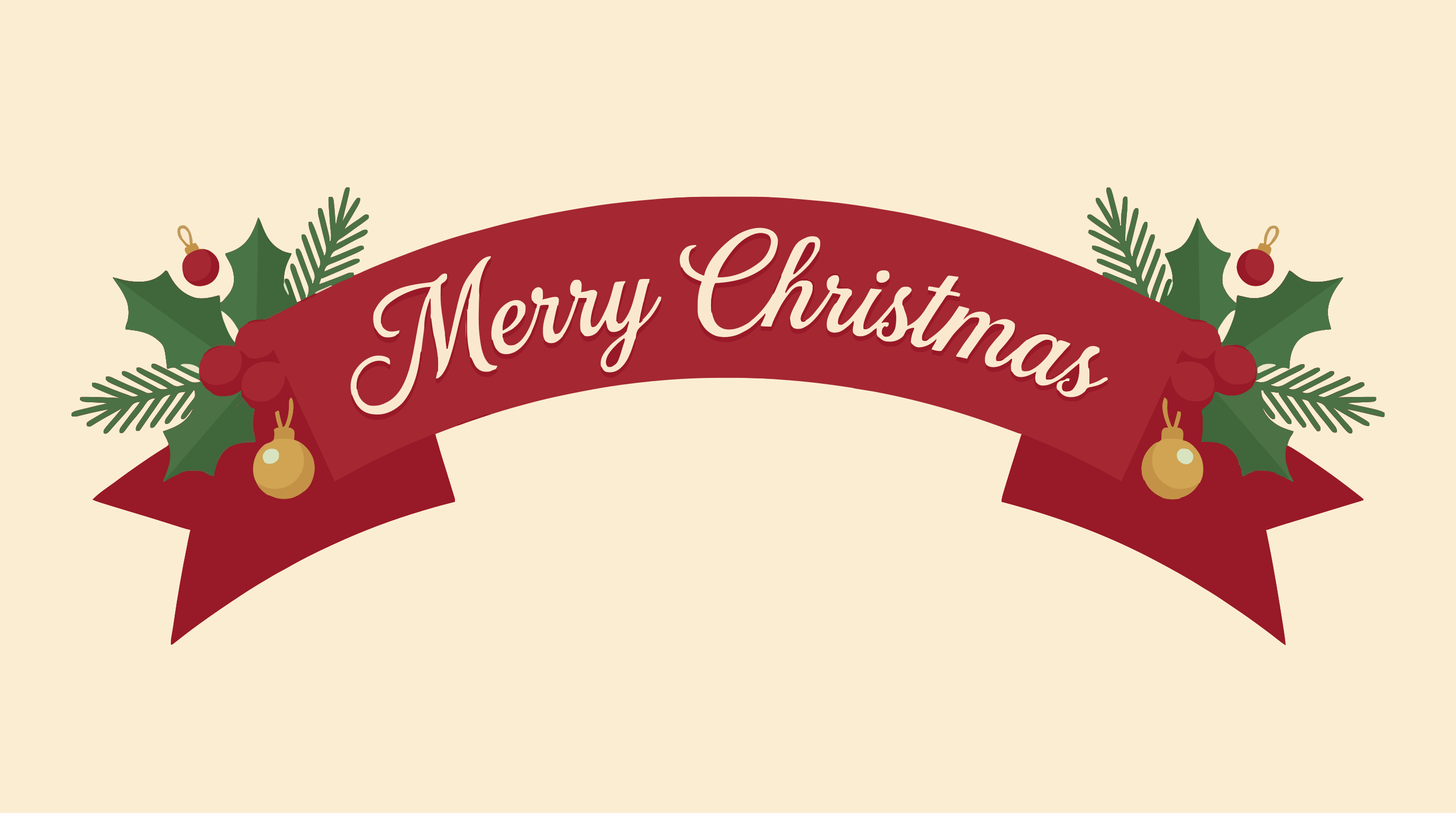
Every tracer does this, including the AI ones. Illustrator, Vectorizer.ai and Recraft all hand text back as shapes. That’s why the words get their own step.
I gave the banner back to the same AI and asked for it without the words. It took one try and cost 13 cents. Everything else stayed in place, which matters, because the text will go back on this exact ribbon.
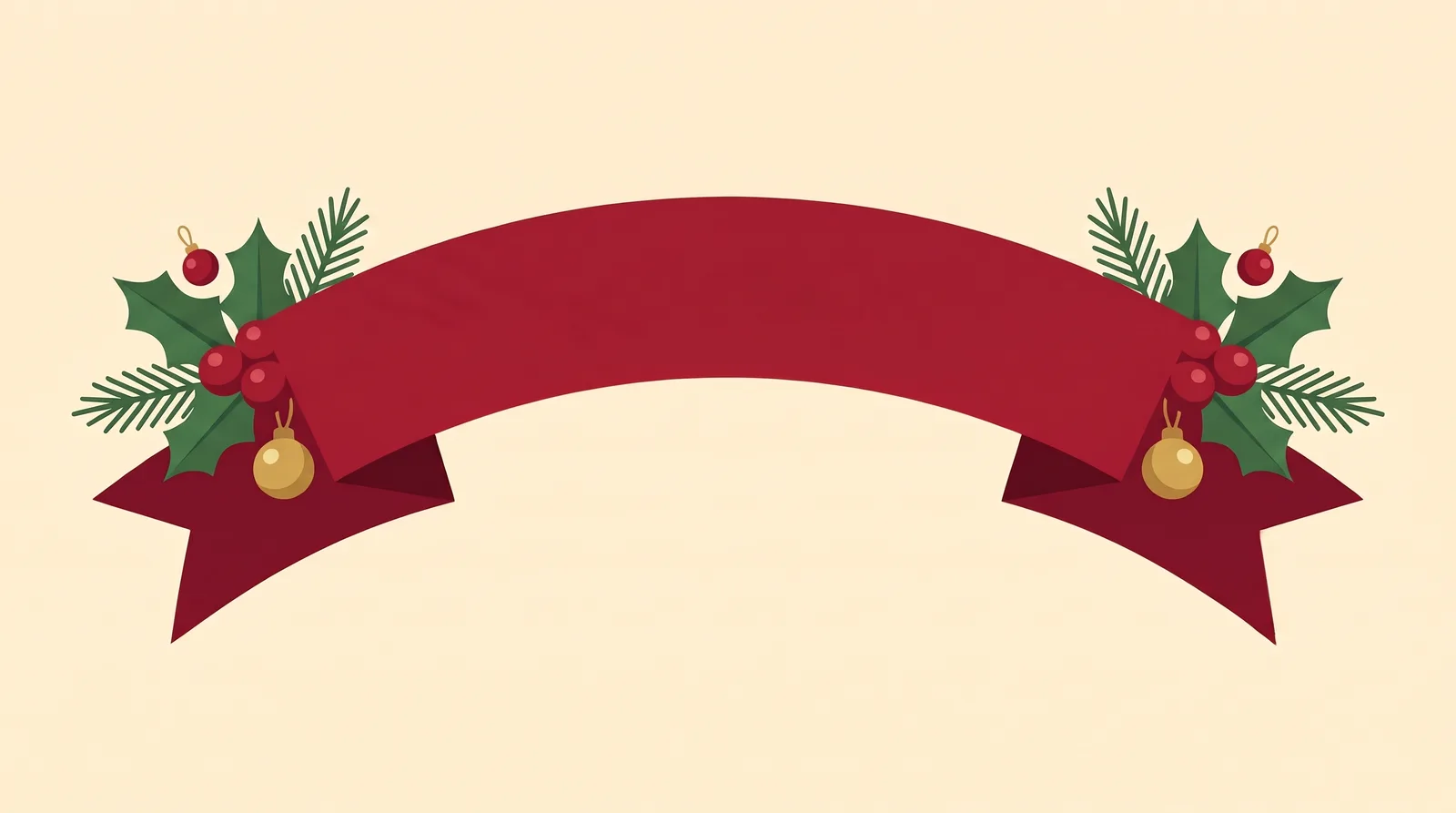
What I askedEdit this exact image: remove the words “Merry Christmas” completely, leaving the red ribbon blank and smooth in that area. Keep everything else the same: same ribbon shape, same holly, berries and ornaments, same background and size.
No AI editor handy? Photoshop’s Generative Fill or Remove tool does the same job. Or ask for a blank ribbon when you first make the image.
Next I traced the text-free picture with VTracer, a free, open-source tracer that handles full color. It came out as 127 shapes in 24 colors.

Inkscape (free) has Path → Trace Bitmap. Illustrator has Image Trace. Or upload to vectorizer.ai. They all do this step. I used VTracer because it’s free and I can run it on many files at once.
First I drew an invisible curve along the middle of the ribbon. I measured the ribbon in the traced art and fit a smooth arc to it. Then I set the words on that curve. Now they’re real text: you can retype them, change the font, or bend the arc.
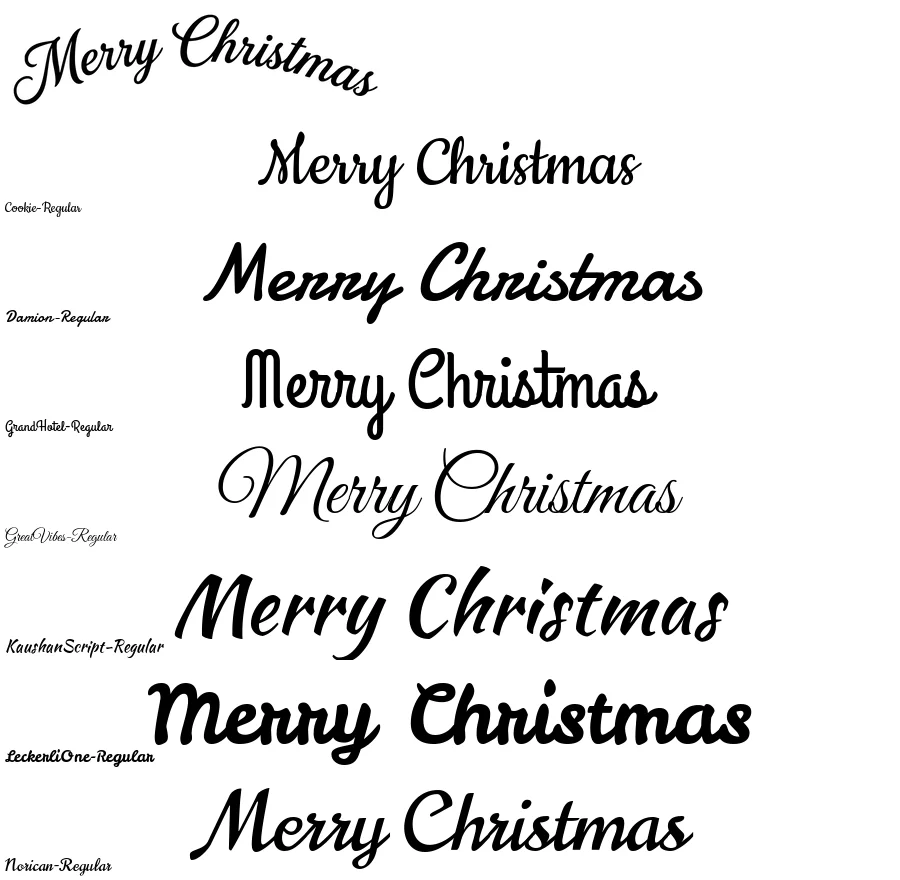
<textPath>, shown belowAI image models draw letters. They don’t use real fonts, so there’s rarely an exact match. I compared seven free Google Fonts against the AI’s lettering, and Norican came closest.
<!-- the invisible curve along the ribbon -->
<path id="ribbon-curve" d="M476,862 Q1376,337 2276,862"/>

<!-- real text that follows it -->
<text font-family="Norican" font-size="228" text-anchor="middle">
  <textPath href="#ribbon-curve" startOffset="50%">Merry Christmas</textPath>
</text>
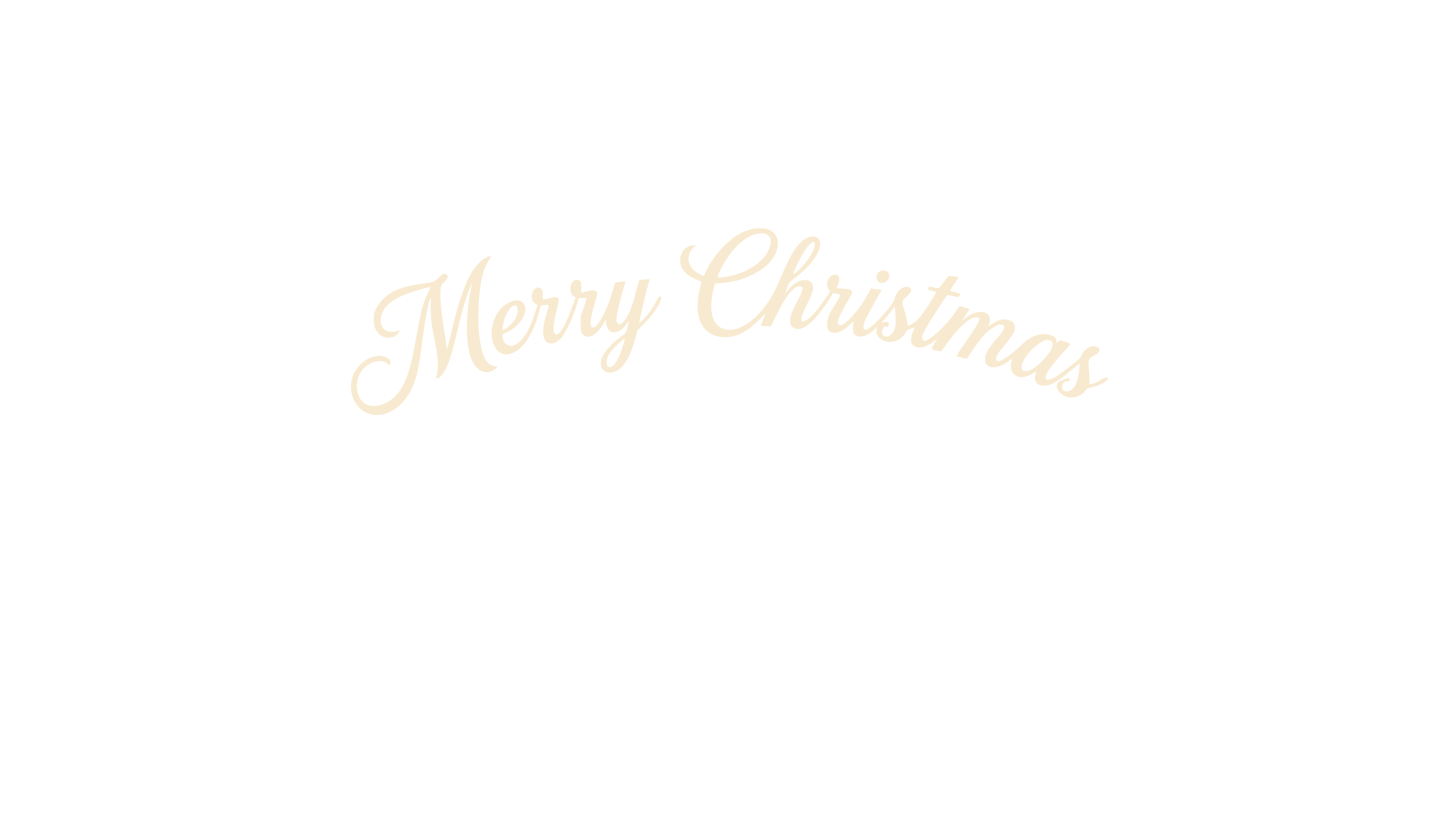
You can trace only the lettering. I compared the original with the text-free copy to find the letter pixels, then traced them with Potrace. That gives one clean shape you can recolor and resize. You can’t retype it, but it keeps the AI’s exact lettering. It’s the “Traced AI lettering” option in the demo below.
This is the finished SVG. Retype the greeting, switch fonts, bend the arc or recolor the ribbon. Click any leaf, berry or ornament to select it, then drag it or change its color.
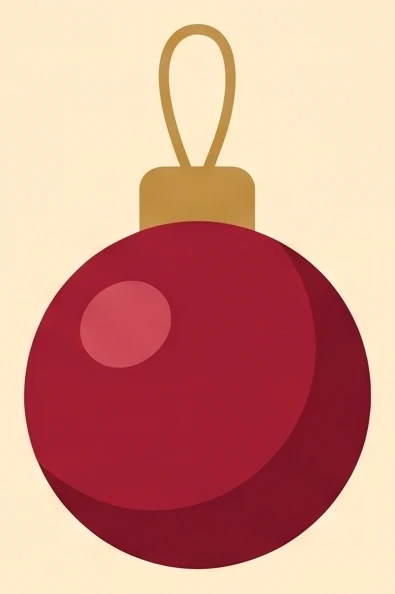
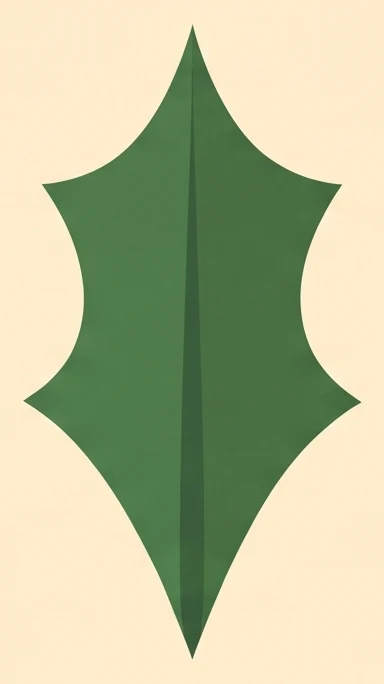
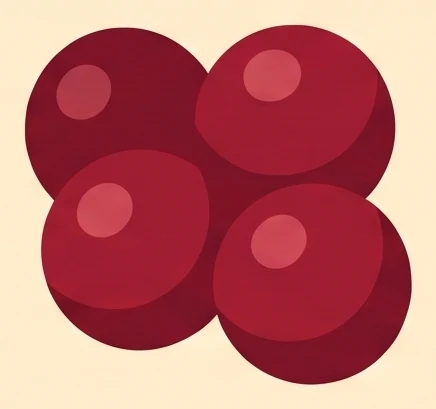
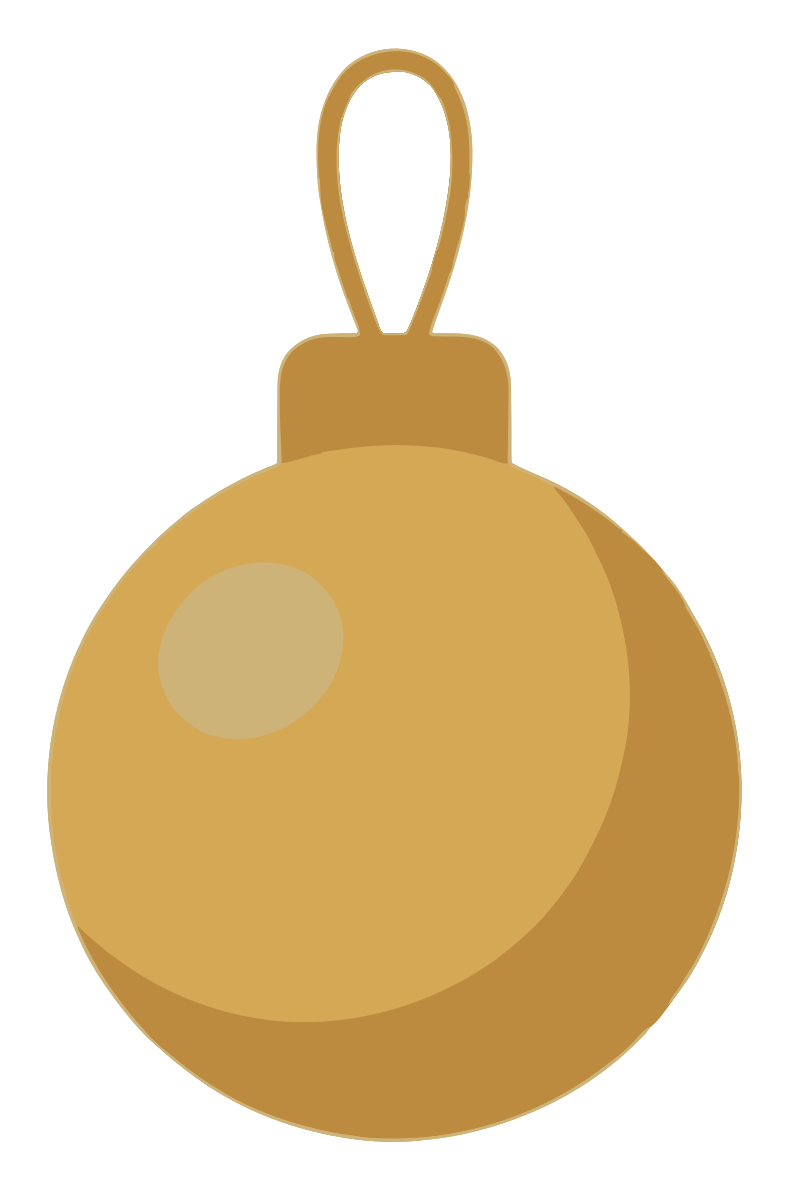
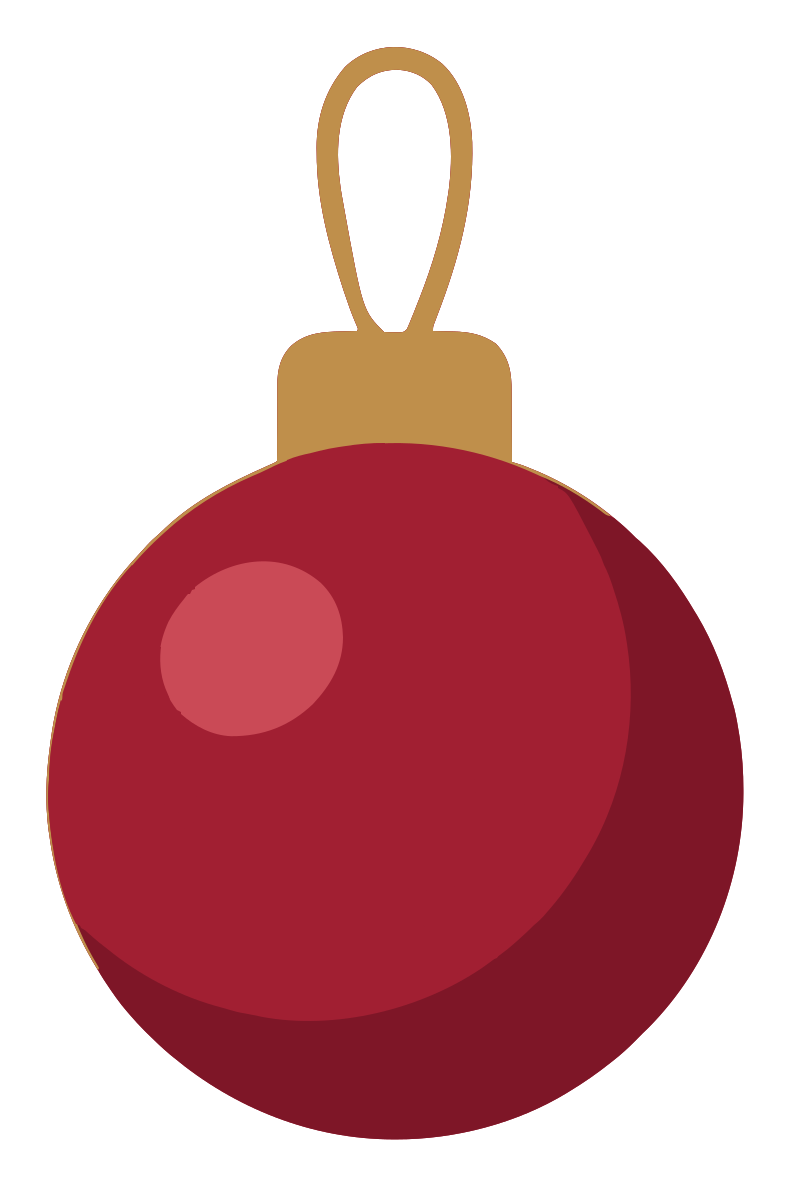
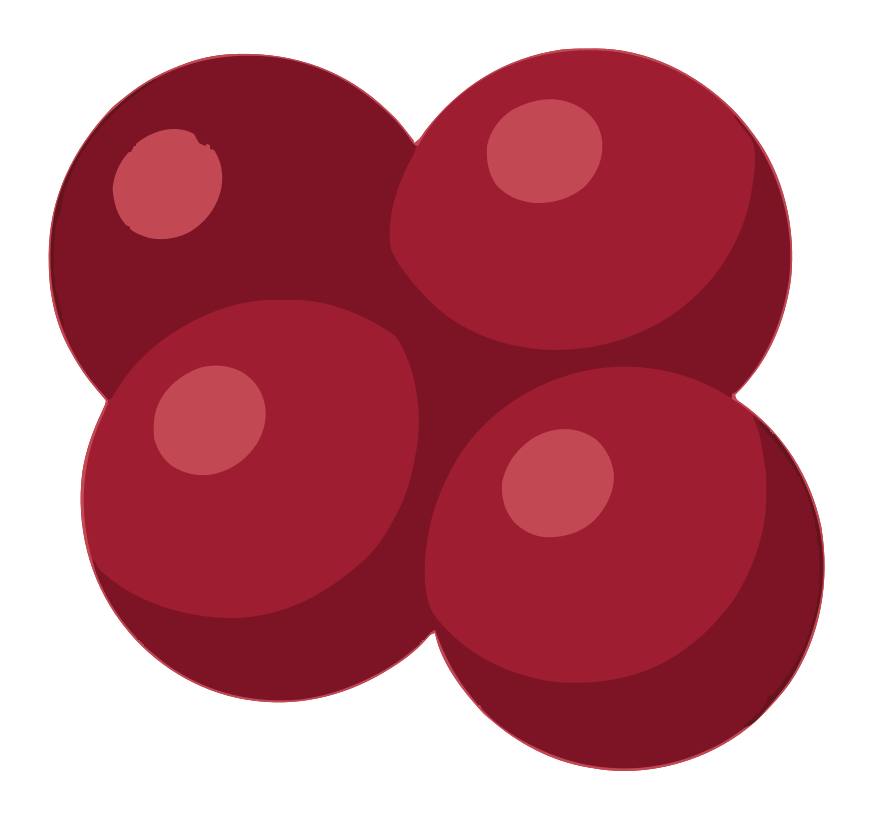
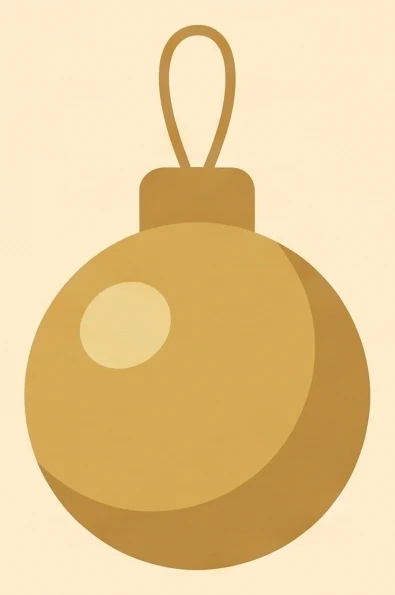
In the banner, the pieces overlap, so cutting one out leaves ragged edges. It’s easier to ask the AI to draw the parts on their own, in the same style. That cost 5 cents.
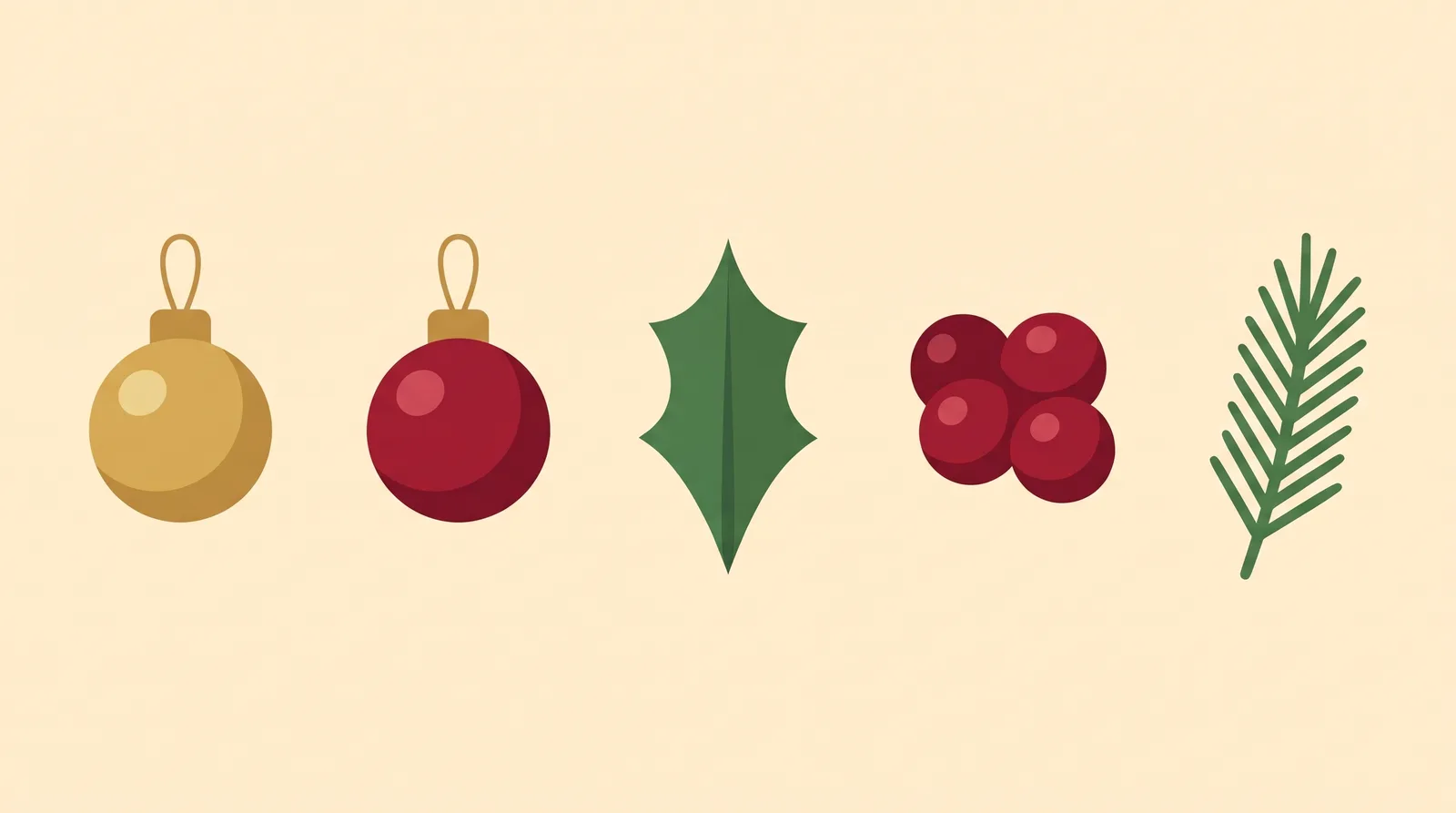
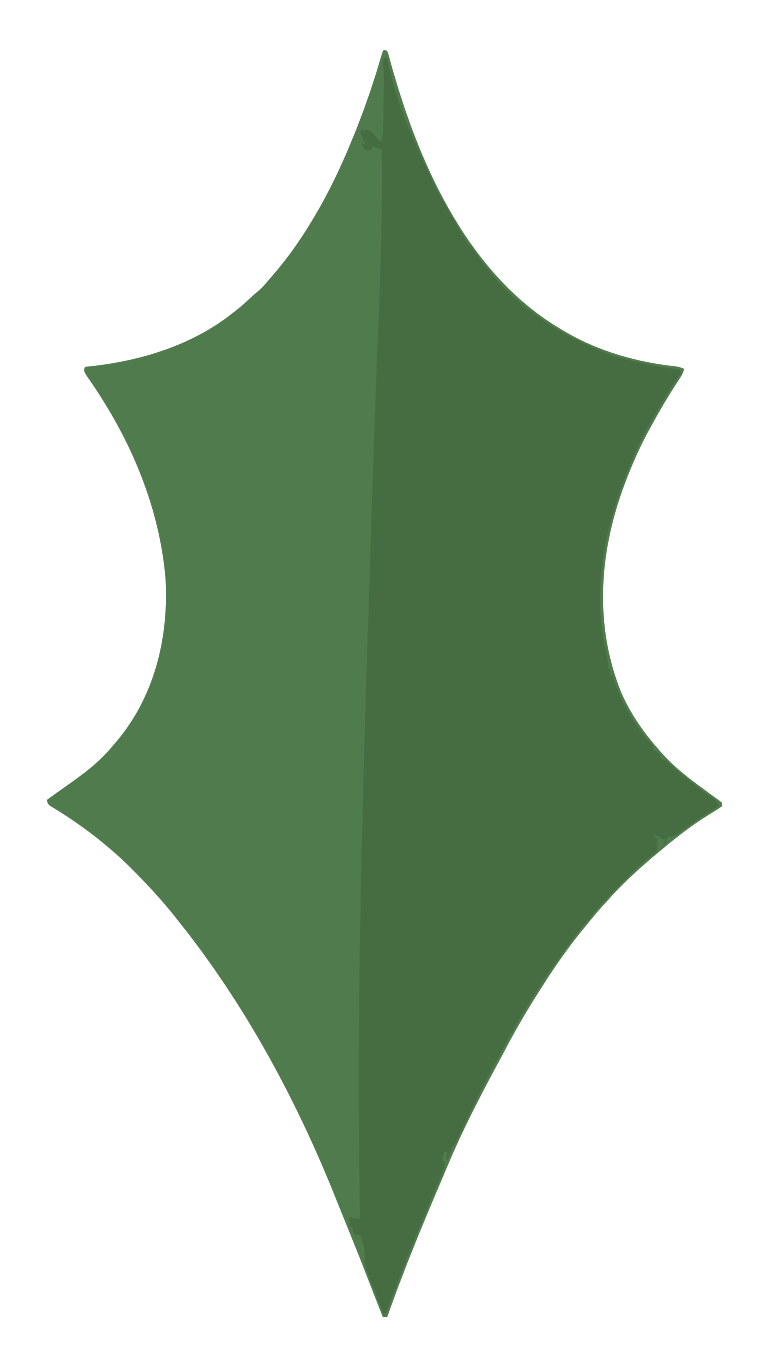
Then, for each piece, I cut it out, snapped it to its few real colors and traced it. Snapping the colors first is what keeps the shape count low. Hit Zoom to see the difference: the PNG goes soft and the SVG stays sharp.
I didn’t do any of the steps above by hand. I typed requests in plain English to Claude Code, Anthropic’s AI assistant that works on your computer. It ran the tools, looked at each result, and showed me what it made. My part was deciding what to make and pointing out what looked wrong.
I asked in my own words, back and forth. These are the same steps written as clean requests.
Make a PNG of a Christmas banner: a red ribbon curving up, with “Merry Christmas” in a cream script font that follows the curve, and holly and gold ornaments at the ends. Flat style, few colors, plain cream background.
Make a copy of that image with the words removed. Keep everything else exactly the same.
Turn the copy without words into an SVG with VTracer. Keep the ribbon’s light and dark reds separate, and keep the number of shapes low. Show me the result.
Put “Merry Christmas” back as live, editable text on a curve that follows the middle of the ribbon. Compare a few free Google Fonts to the original lettering and use the closest one.
Also trace just the original lettering as one shape, so I have the AI’s exact letters as well.
Now the ornaments and a holly leaf. Have the image model draw them separately on a plain background, then trace each one with as few shapes as possible.
Put it all in an HTML page where I can retype the text, change the colors and drag the pieces around.
Two habits that help: ask Claude to show you each result, since it can look at images and catch problems early. And ask it to save the steps as a script, so your next banner takes one request.
| Tool | Cost | Good for | Watch out for |
|---|---|---|---|
| Inkscape (Trace Bitmap) | Free | One-off traces on your computer | Gives you lots of stacked layers to tidy up |
| VTracer | Free | Full-color art, and tracing many files at once. What I used. | Install version 1.0 to get the color controls |
| Potrace | Free | One-color shapes, like lettering or a logo | Black and white only |
| Illustrator (Image Trace) | Creative Cloud plan | If you already work in Illustrator | Recent versions got mixed reviews from users |
| Vectorizer.ai | $9.99 a month, or $0.05–$0.20 an image by API | Clean one-click results, real circles and curves | Images up to 3 megapixels |
| Recraft | $0.01 an image to trace, $0.08 to make a vector from a prompt | Making vectors straight from a prompt | Free plan isn’t licensed for commercial use |
Prices as of October 2026. Some AI tools (Recraft, Ideogram Vector) can make an SVG straight from a prompt and skip tracing. Their words still come out as shapes, so Step 3 still applies.
Flat style, a few colors, a plain background. Glows, soft shadows and gradients turn into stripes.
Erase them, trace the art, then set the words again as real text.
One ornament on a plain background traces cleaner than the same ornament in a busy scene.
Snap each piece to its few real colors before tracing. The holly leaf came out as 2 shapes.
Turn the text into outlines only on the final copy for print, Cricut or a laser cutter.
Google Fonts are free for commercial work. Paid fonts can have limits on products you sell.
The editable banner loads Norican from Google Fonts, so it looks right in a browser. To edit it in Illustrator or Inkscape, install Norican first (it’s free).
Work with me
I set up AI tools inside the software people already use, including image workflows like this one. The first talk is free.